2. Upload Your First Point Cloud & BIM

By uploading your Point Cloud and BIM (Building Information Model), you’re setting the foundation for accurate coordination, clash detection, and progress tracking. Whether you're comparing a fresh laser scan to the master model or preparing for a site walkthrough, this is the first step toward a true digital twin.

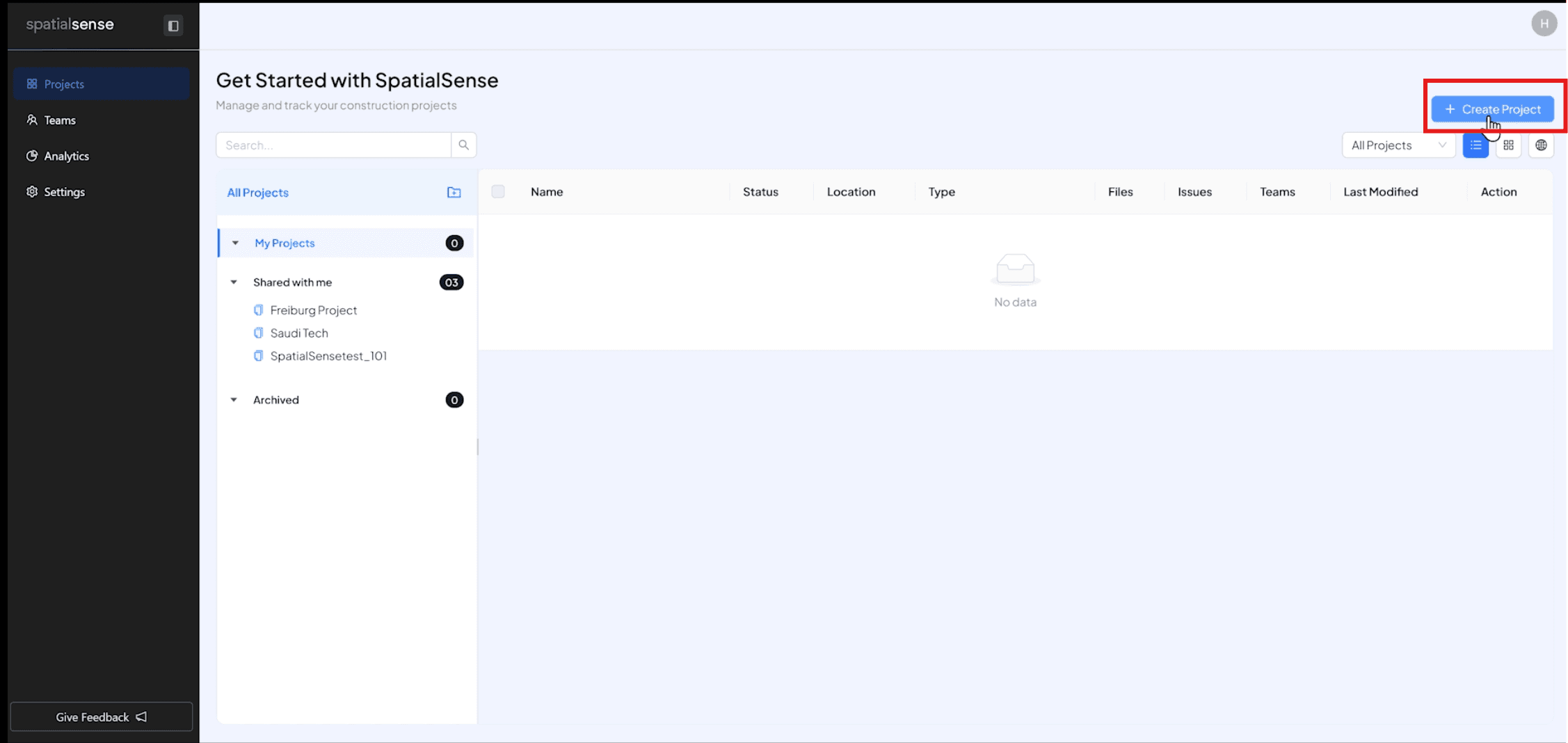
  • Click on “Create Project”


  • Add the project details then Press “Next” 
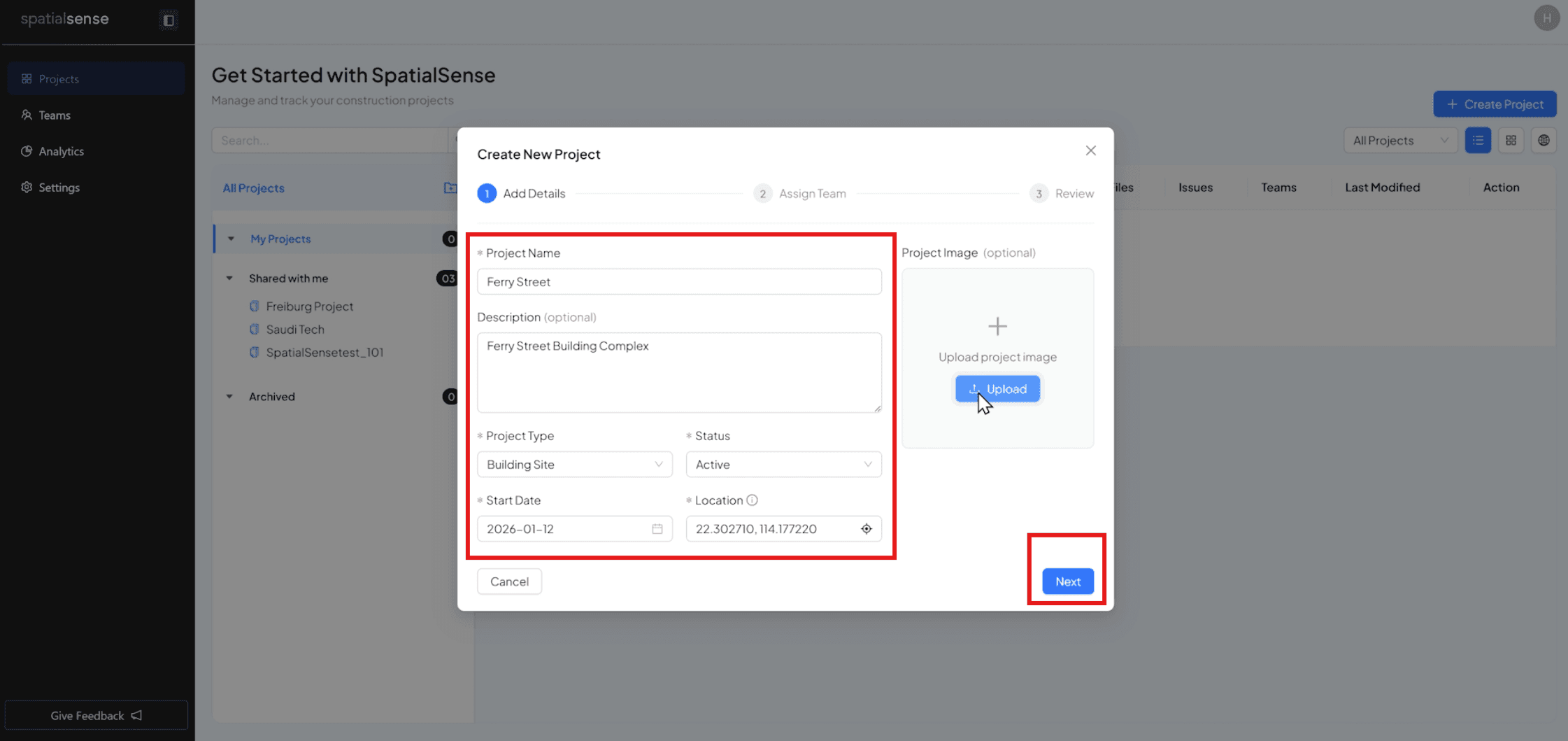
  • Assign the project to team if any, and then press “Next”
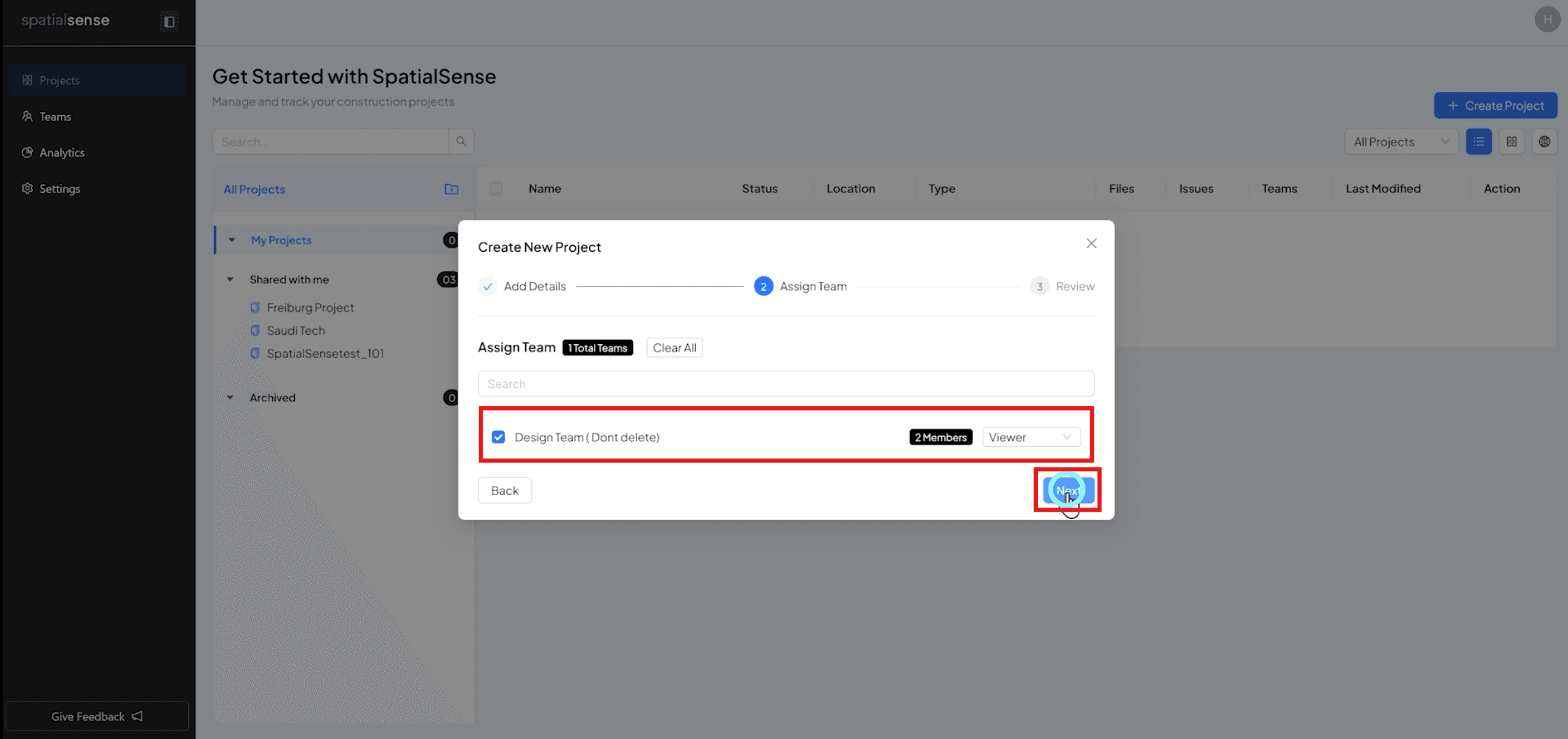
  • Review the added the details if correct then press "Create Project” 
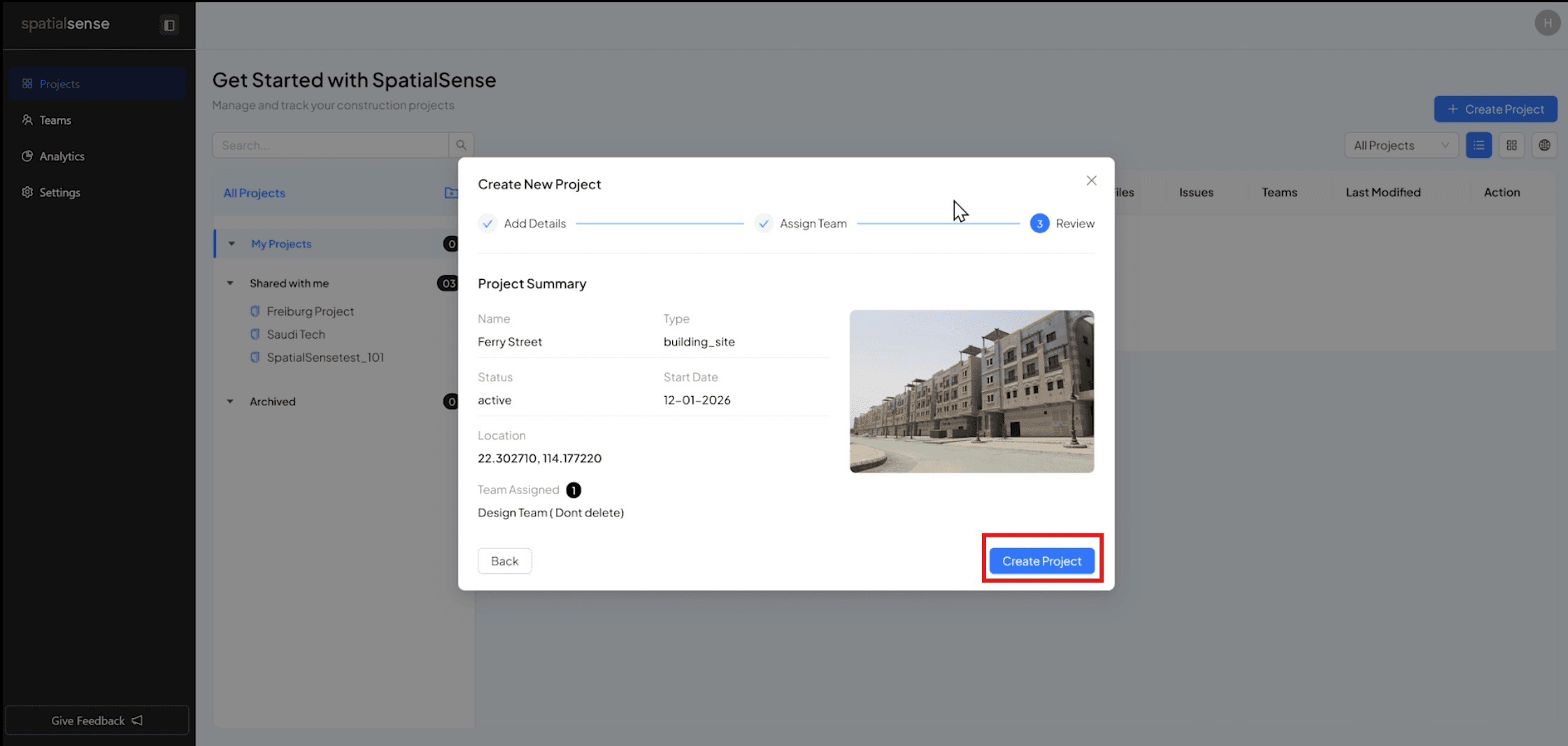
  • Click on the project name and the click on the “ Open project” to open the project and it details
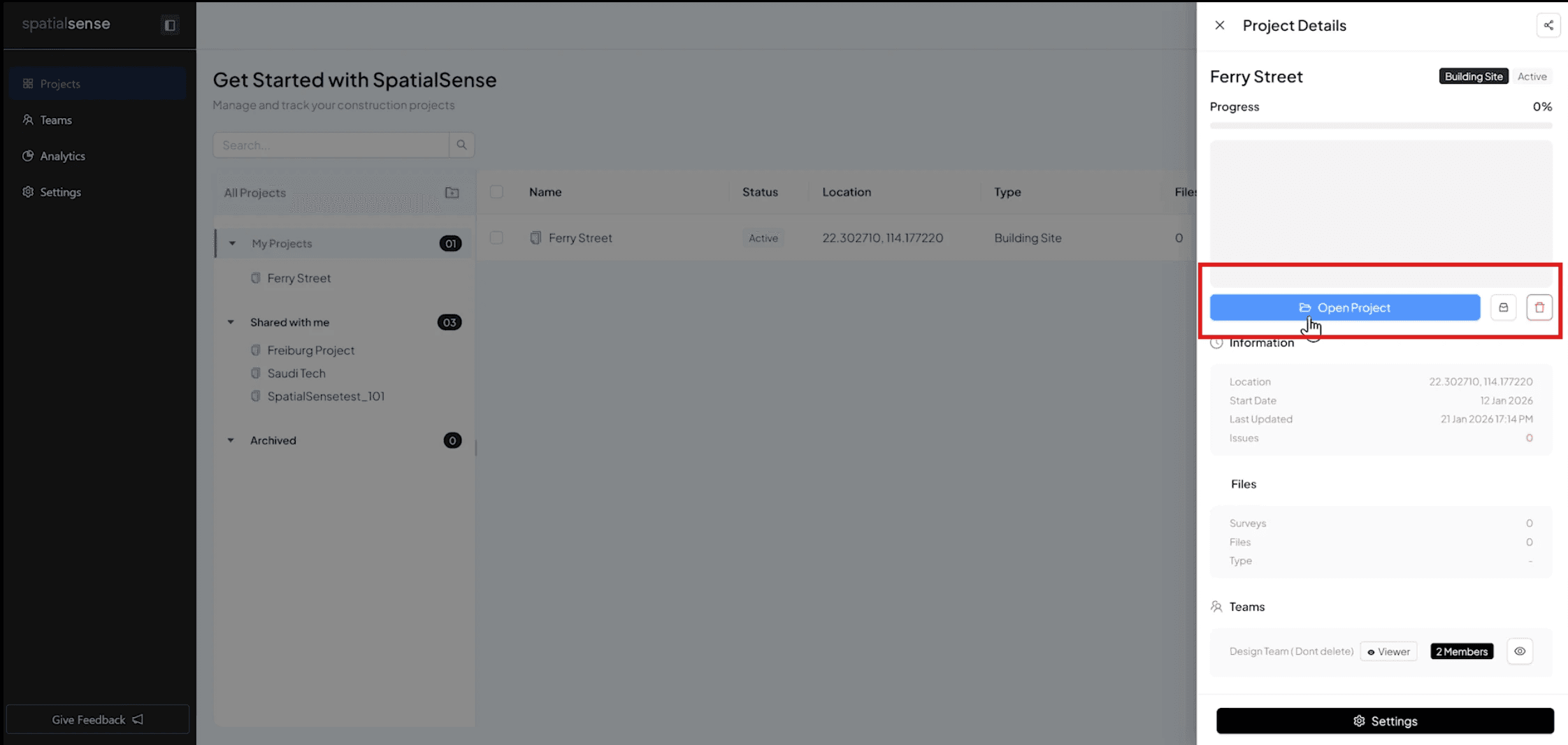
  • Click on “ Add survey” to survey data for the project
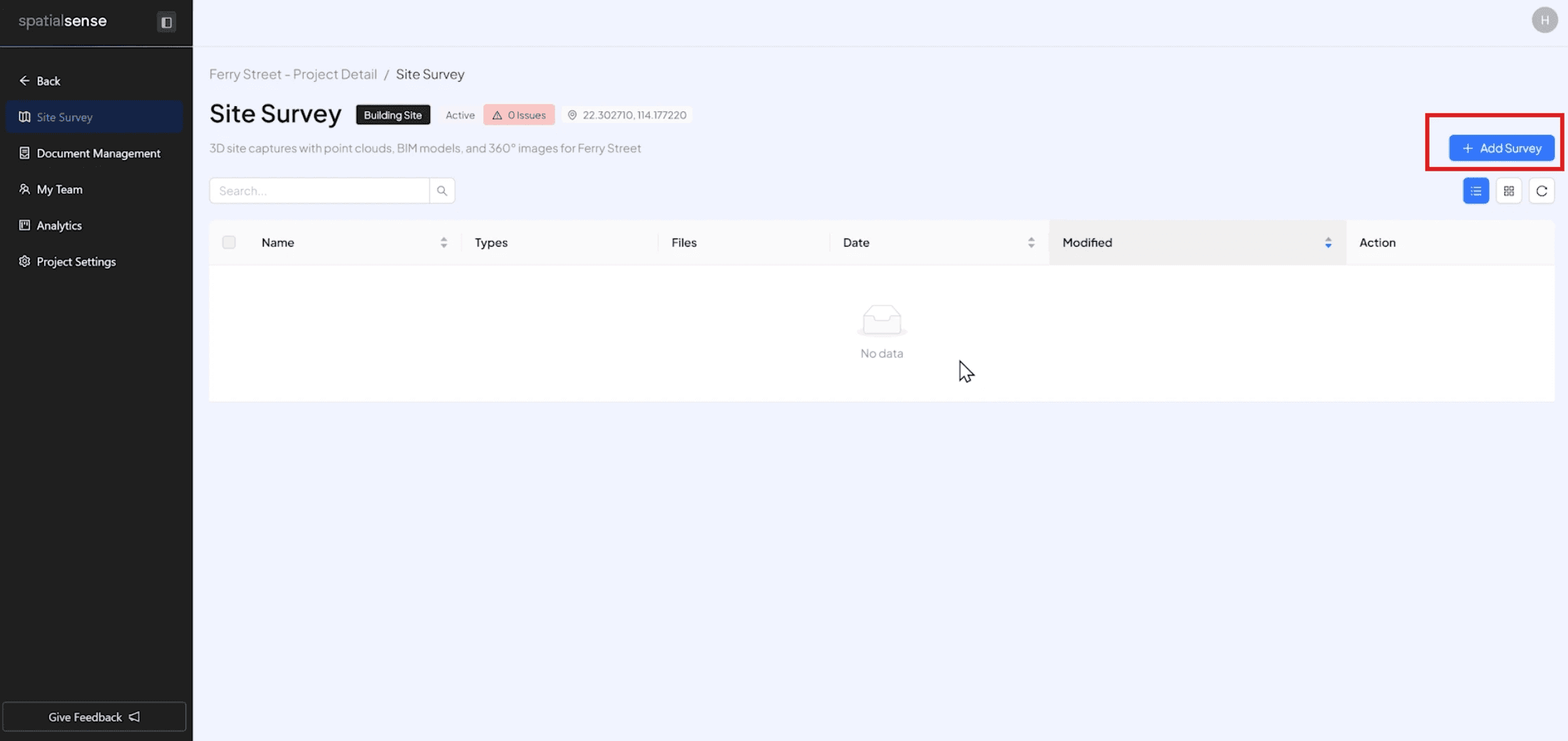
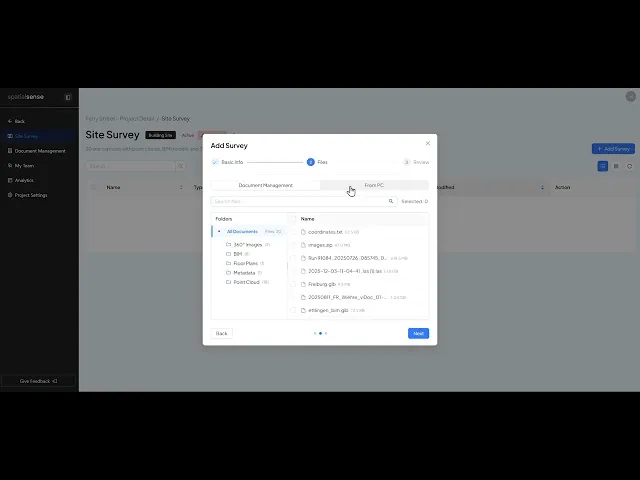
  • Add Basic info and upload new files from your PC or add files from your document management system if you have any other files uploaded to the portal
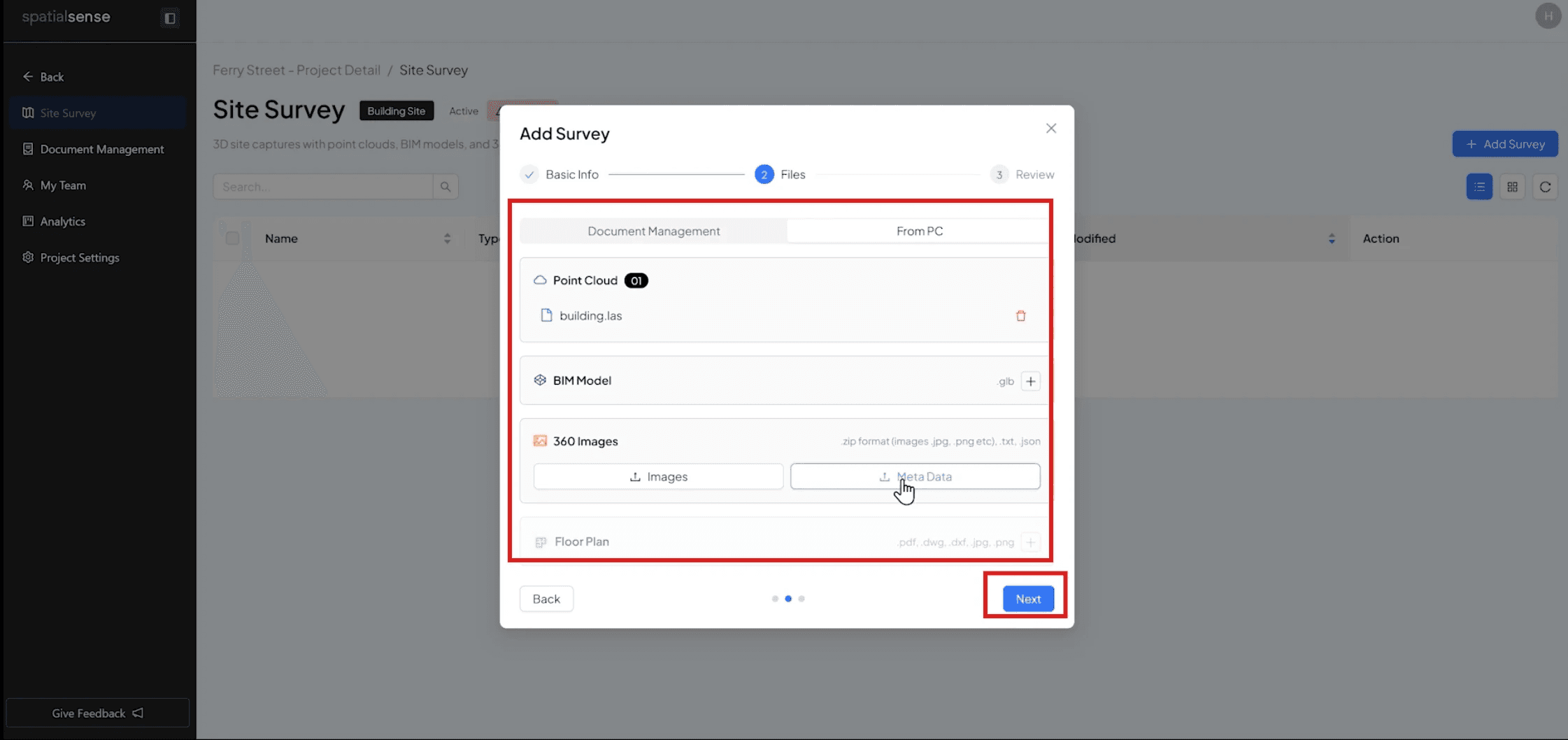
  • Click on “Next”, review the data and then press “ Add” to save the save
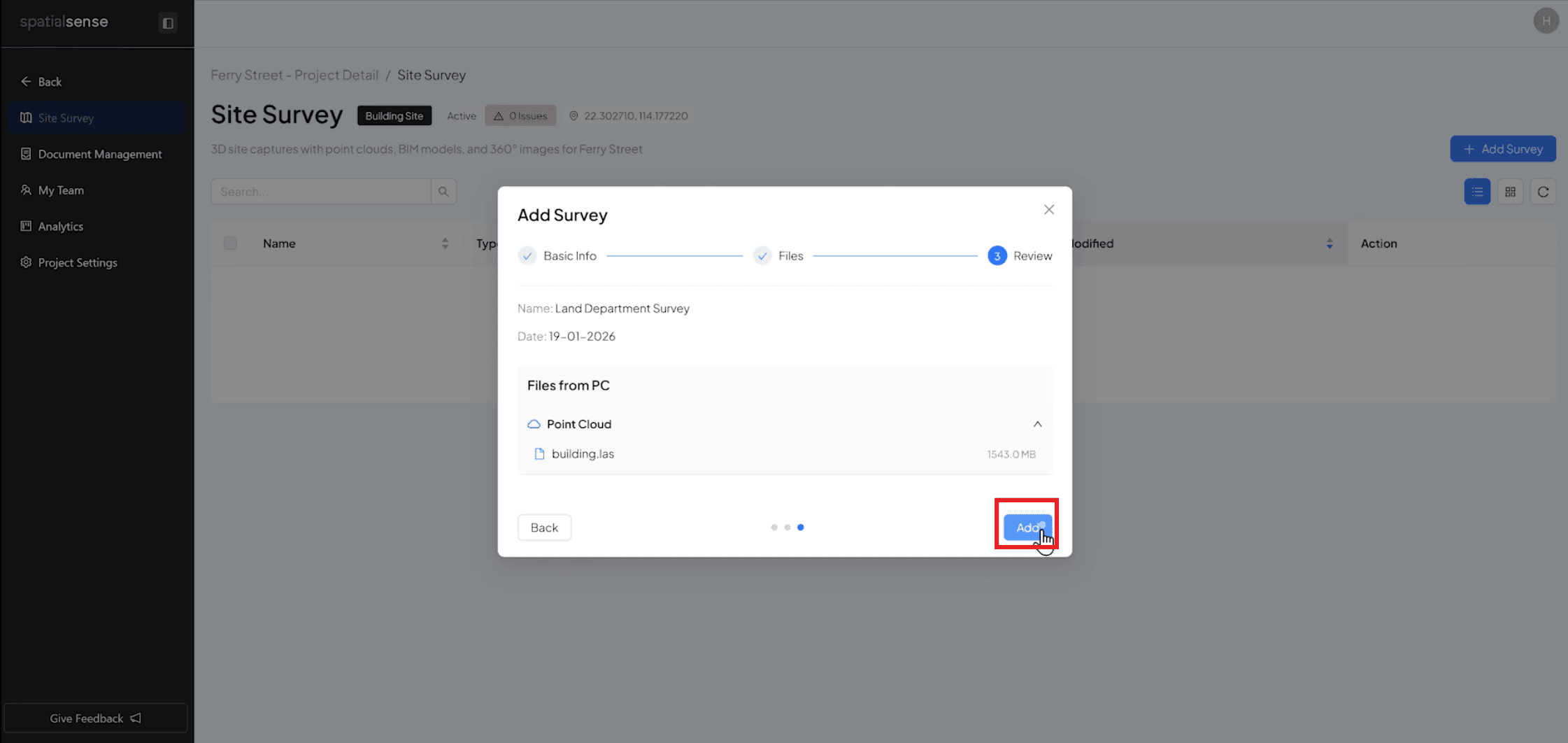
  • Wait for the files to be uploaded and wait for them to process
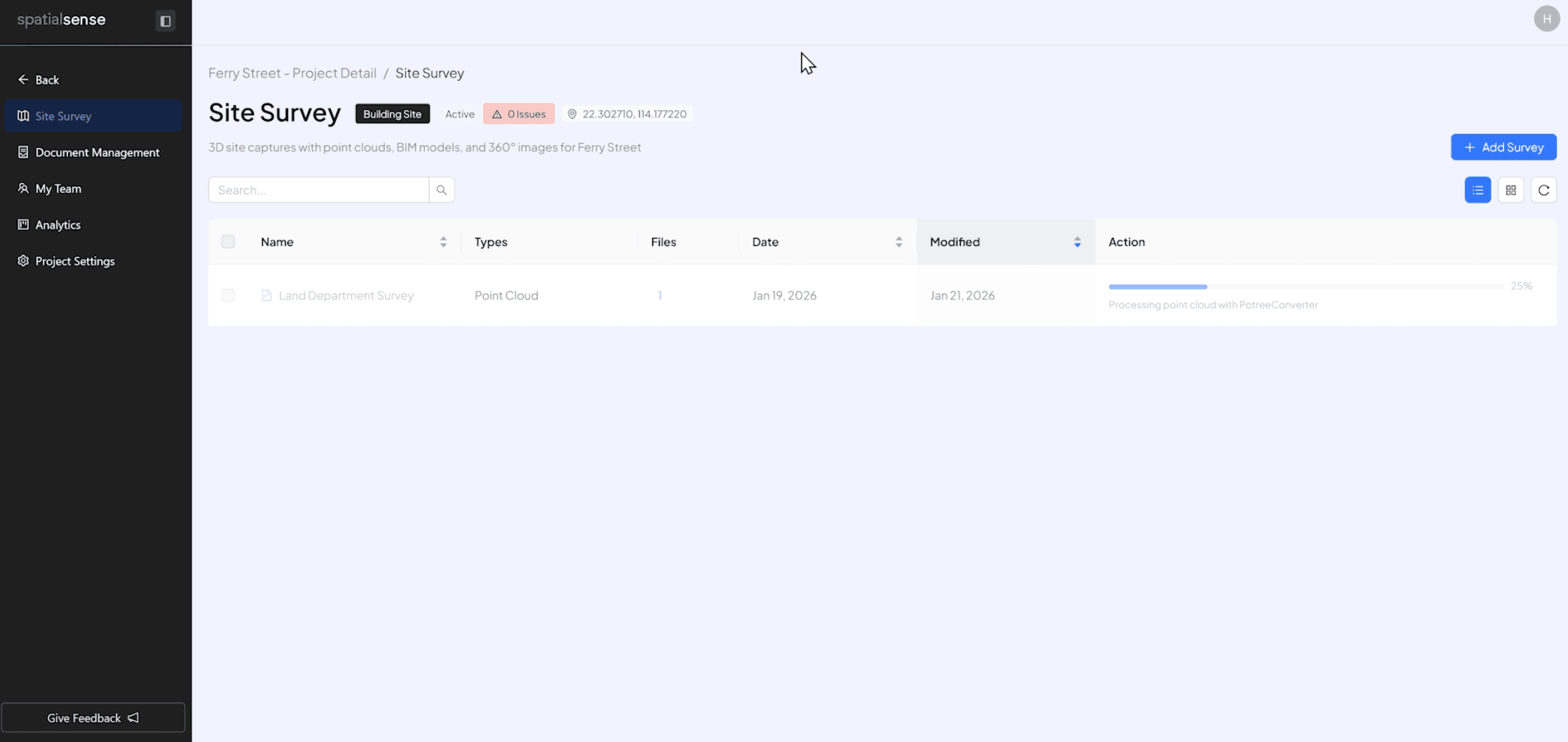
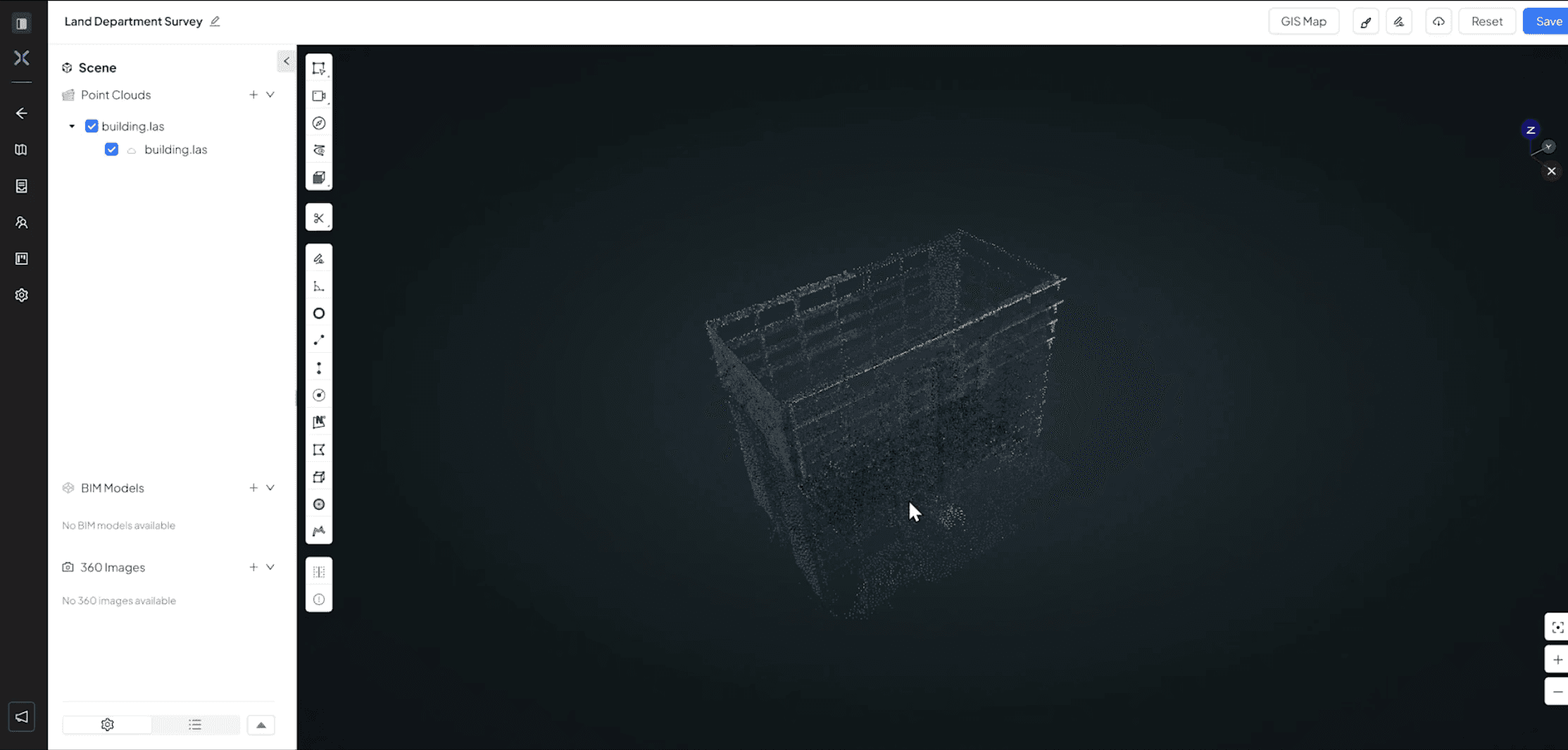
  • After the processing has finished, click on the survey you created to open it in the 3D viewer.

  • Detailed Video of Steps above

By uploading your Point Cloud and BIM (Building Information Model), you’re setting the foundation for accurate coordination, clash detection, and progress tracking. Whether you're comparing a fresh laser scan to the master model or preparing for a site walkthrough, this is the first step toward a true digital twin.

  • Click on “Create Project”


  • Add the project details then Press “Next” 

  • Assign the project to team if any, and then press “Next”

  • Review the added the details if correct then press "Create Project” 

  • Click on the project name and the click on the “ Open project” to open the project and it details

  • Click on “ Add survey” to survey data for the project

  • Add Basic info and upload new files from your PC or add files from your document management system if you have any other files uploaded to the portal

  • Click on “Next”, review the data and then press “ Add” to save the save

  • Wait for the files to be uploaded and wait for them to process

  • After the processing has finished, click on the survey you created to open it in the 3D viewer.


  • Detailed Video of Steps above

By uploading your Point Cloud and BIM (Building Information Model), you’re setting the foundation for accurate coordination, clash detection, and progress tracking. Whether you're comparing a fresh laser scan to the master model or preparing for a site walkthrough, this is the first step toward a true digital twin.

  • Click on “Create Project”


  • Add the project details then Press “Next” 

  • Assign the project to team if any, and then press “Next”

  • Review the added the details if correct then press "Create Project” 

  • Click on the project name and the click on the “ Open project” to open the project and it details

  • Click on “ Add survey” to survey data for the project

  • Add Basic info and upload new files from your PC or add files from your document management system if you have any other files uploaded to the portal

  • Click on “Next”, review the data and then press “ Add” to save the save

  • Wait for the files to be uploaded and wait for them to process

  • After the processing has finished, click on the survey you created to open it in the 3D viewer.


  • Detailed Video of Steps above